

Introduction
This page explains how to move Clibor to a new PC and how to switch from the Portable version to the Microsoft Store version.
Create a backup (on the source PC)
With Clibor running, create a backup as follows.
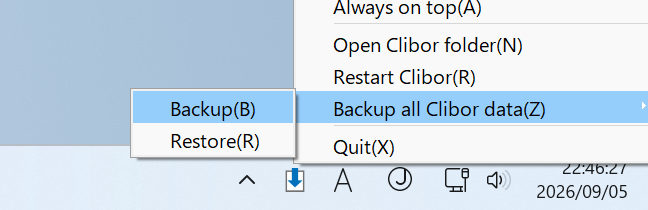
Right-click the Clibor icon in the system tray and choose "Backup all Clibor data" → "Backup".
A save dialog appears. Choose where to save the backup file.
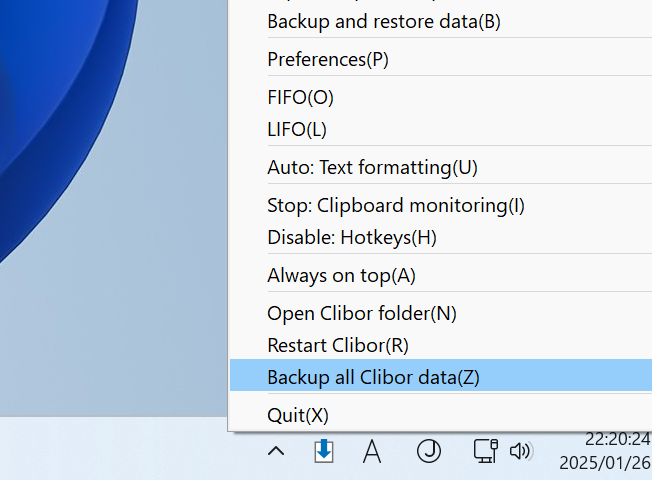
On older versions, choose "Backup all Clibor data" and save the backup file.
Restore on the new PC
Install Clibor on the destination PC.

After launching Clibor, restore as follows.
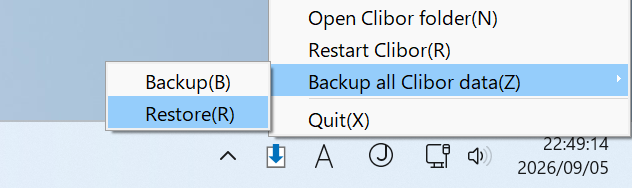
Right-click the Clibor icon in the system tray and choose "Backup all Clibor data" → "Restore".
A file dialog appears. Select the backup file you created on the source PC.
Switching from the Portable version to the Store version
The steps are the same as above.
Create a Backup in the Portable version, then quit Clibor.
After installing the Store version, use Restore there.
The setting to launch Clibor when Windows starts is not carried over.
Remove the Portable version from startup first, then add the Store version to startup.