

Templates
Save frequently used phrases as Templates to copy them to the clipboard at any time.
For example, you can quickly copy a saved phrase like "I hope your day is going great."
You can also organize templates into groups.
Let's start by adding a new Template.
You can select a group by right-clicking on the "Templates" tab.
A pop-up also appears if you press Enter with no Template selected.

The default Template groups are "Group 1" and "Group 2".
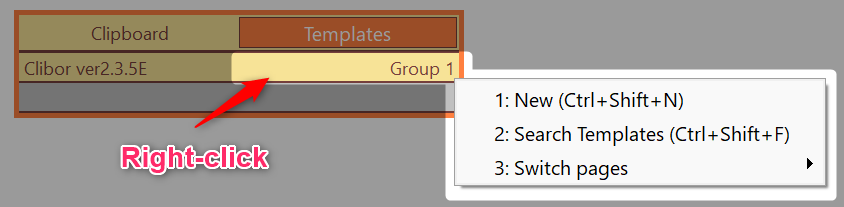
To add a new Template, right-click the group heading (for example, "Group 1") and select "New" from the menu, or press Ctrl+Shift+N.
The entry creation screen will then open.
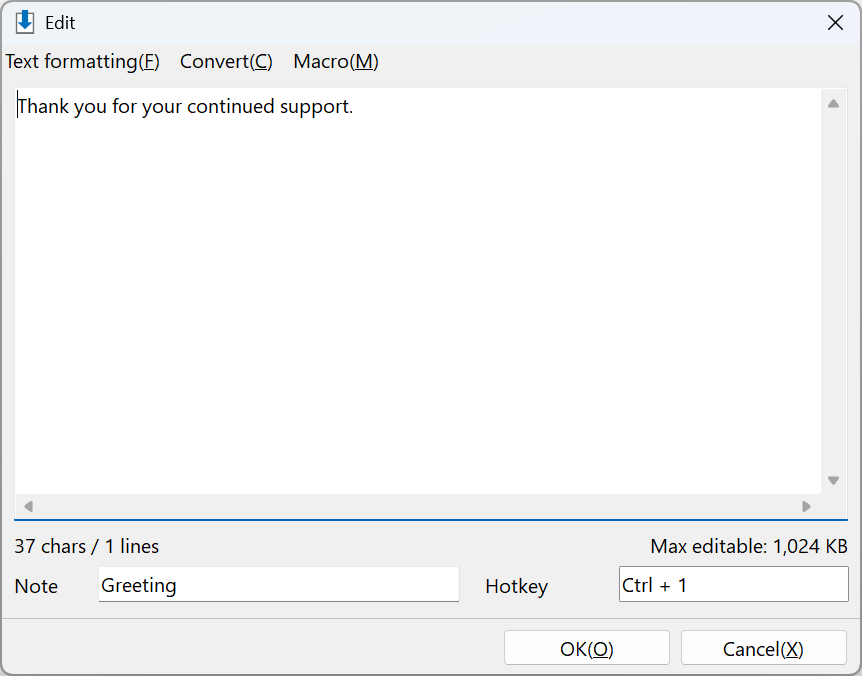
On this screen, you can add a new Template. You can also add a note and assign a hotkey.
Enter your text, then click OK to save.
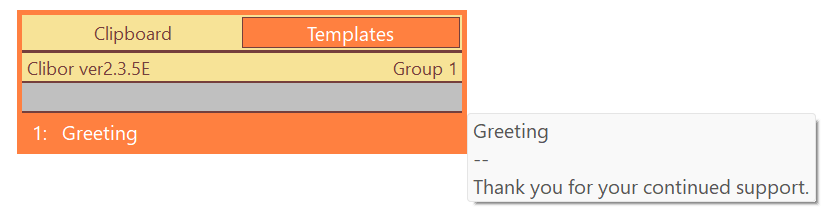
Once saved, click a Template entry to copy it to the clipboard.
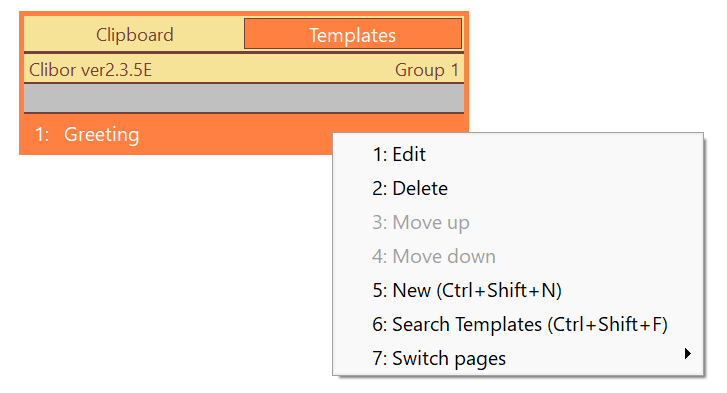
Edit, delete, reorder, and search
From the right-click menu, you can reorder, edit, delete, and search Templates.
About groups and editing
Right-click the Clibor icon in the system tray, and from the menu, you can edit groups and Templates.
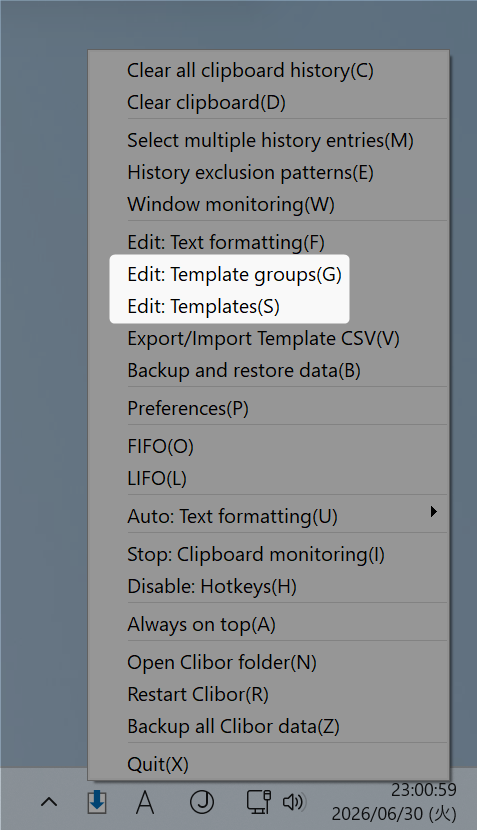
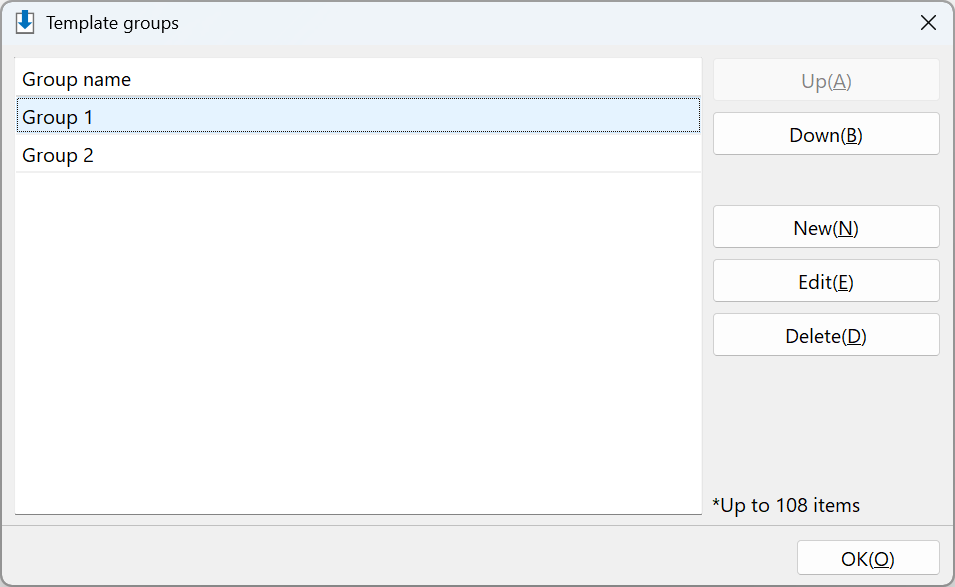
You can edit Template groups on the following screen.
Here, you can add, edit, delete, and reorder groups.
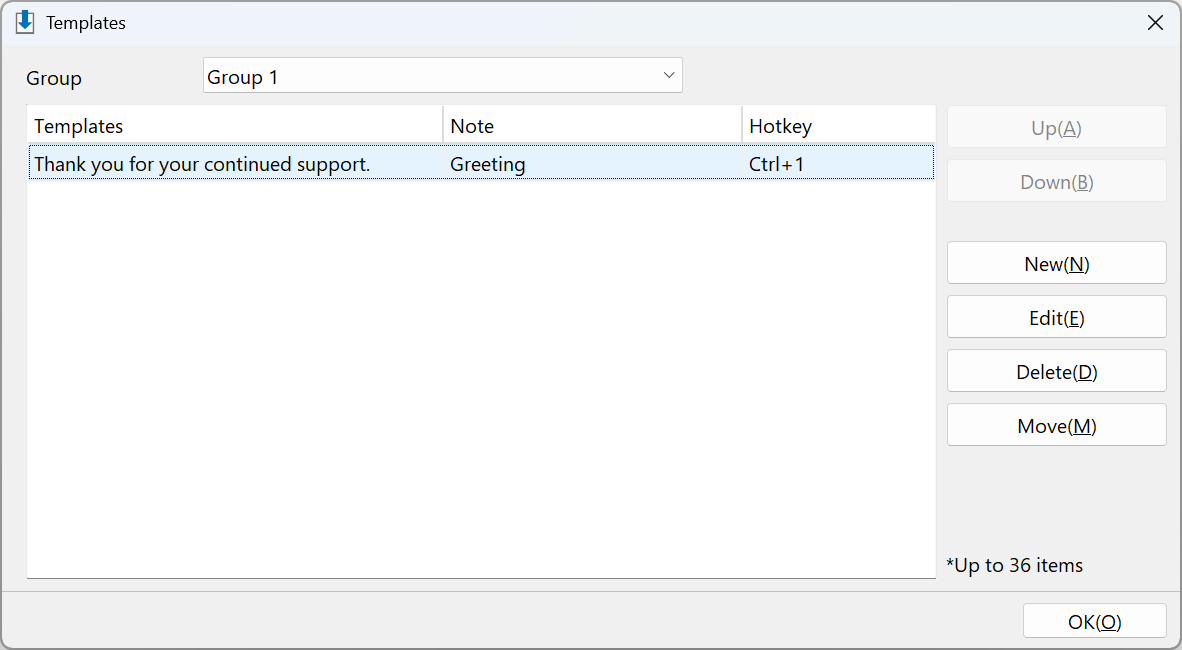
You can edit Templates on the following screen.
Here, you can add, edit, delete, and reorder individual Template entries.
Next, let's look at one of Clibor's most useful features: FIFO/LIFO.