

Preferences
Clibor offers a wide range of settings and is highly customizable.
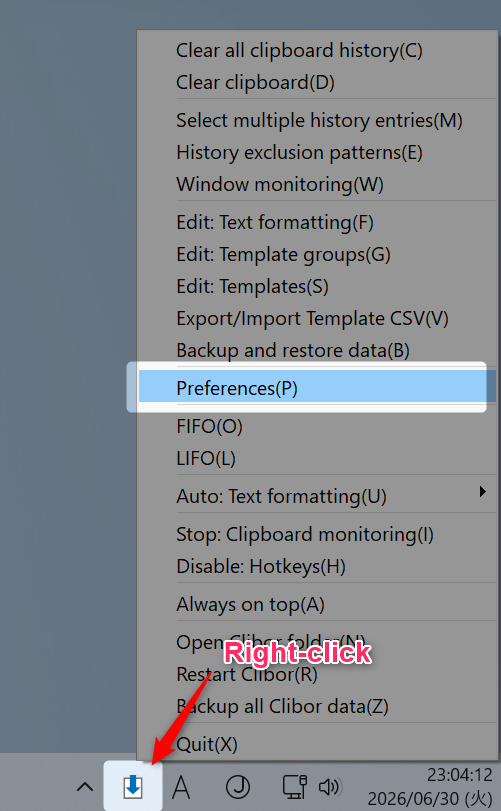
To access the settings, right-click on the Clibor icon in the system tray and select Preferences.
Hotkey to open Clibor
By default, Clibor opens when you press Ctrl twice quickly.
You can also set a different hotkey of your choice.
Preferences > Hotkey
Set a startup password
I strongly recommend setting a startup password for added security. Your saved data is encrypted with this password.
Preferences > General > Data > Set a startup password
Tooltip display in the system tray
The current clipboard content can be shown as a tooltip in the system tray for quick reference.
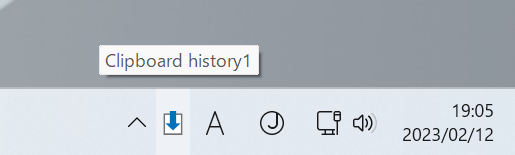
Preferences > General > Show clipboard content in the system tray tooltip

Using auto-paste selectively
I usually keep the auto-paste setting disabled.
That said, there are times I think, "I just want to auto-paste this one time."
In such cases, simply adjust the following settings:
Preferences > General > Reverse auto-paste behavior when Alt is held
To use auto-paste temporarily, hold the Alt key and click (or press Enter) on the clipboard history or Template entry you want to paste.
Shortcut keys are also supported. For example, if you want to select and paste the second clipboard history entry, press Alt+2, and it will paste automatically.
With the same setting enabled, you can also hold Alt to temporarily disable auto-paste when it is normally on.
Move Clibor
If part of the main screen is cut off after switching between the Clipboard and Templates tabs, you can move it by dragging.
You can move Clibor's main screen by dragging it.
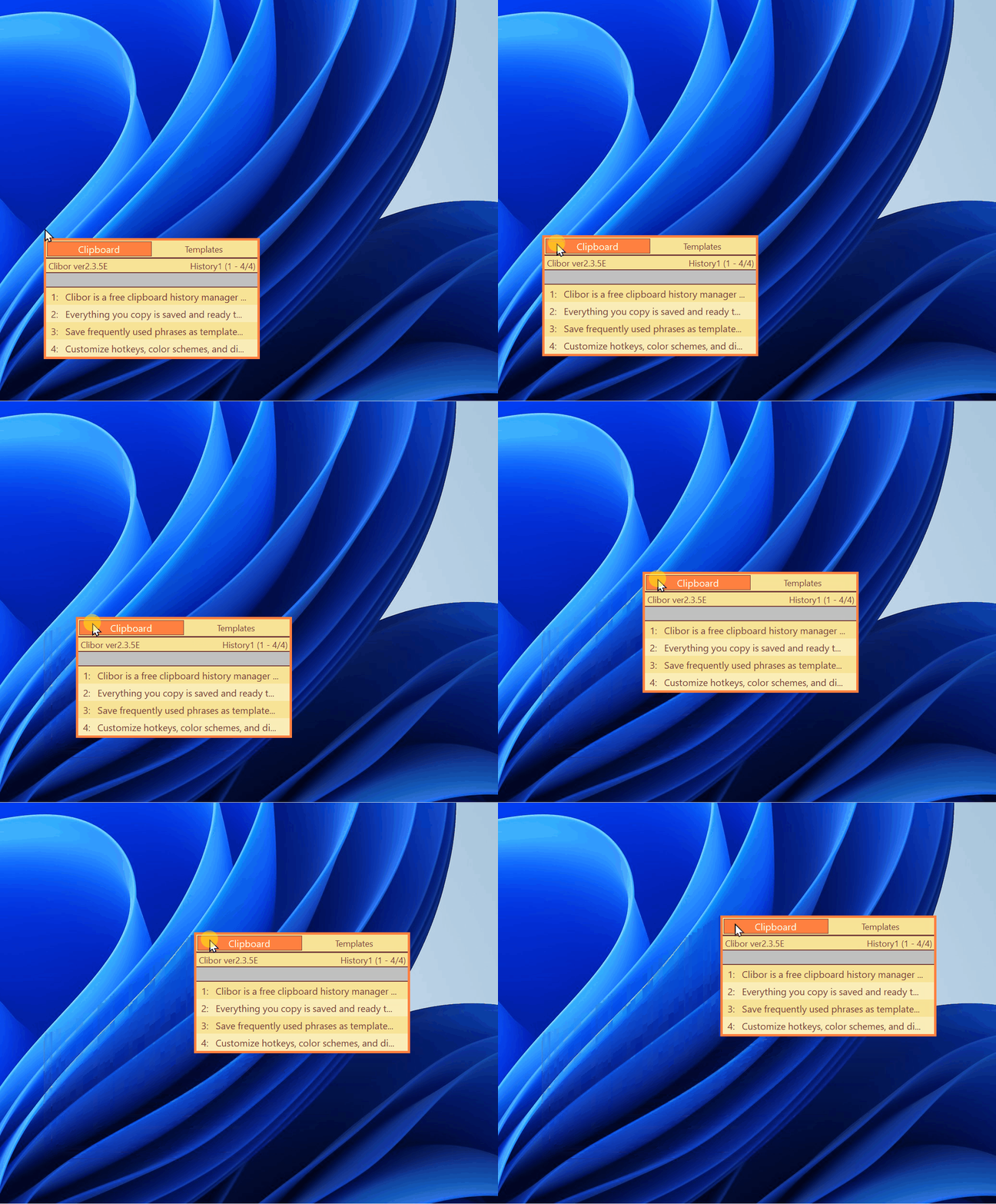
To move it, left-click and drag on the "Clipboard" or "Templates" tabs.