Templates display
You can customize how the Templates list is displayed.
Show 'Note' instead of the template text
Changes the display to show the note instead of the template text.
Preferences > Templates > Show 'Note' instead of the template text
Customize the template display
Customize what's shown for each template entry.

Preferences > Templates
Note – Template
Display the note alongside the template.
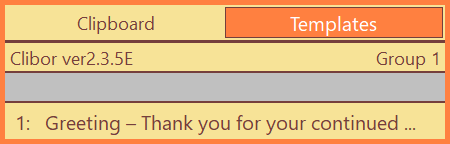
<$CLB_IF_MEMO><$CLB_MEMO/> – </CLB_IF_MEMO><$CLB_TEIKEI/>Note – Hotkey – Template
Display the note, hotkey, and template together.
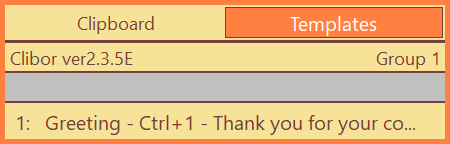
<$CLB_IF_MEMO><$CLB_MEMO/> - </CLB_IF_MEMO><$CLB_IF_HOTKEY><$CLB_HOTKEY/> - </CLB_IF_HOTKEY><$CLB_TEIKEI/>The following tags can be used:
| <$CLB_MEMO/> | Displays the note. |
| <$CLB_HOTKEY/> | Displays the hotkey. |
| <$CLB_TEIKEI/> | Displays the template. |
| <$CLB_IF_MEMO></CLB_IF_MEMO> | The content enclosed in this tag is displayed only if a note is present. |
| <$CLB_IFNOT_MEMO></CLB_IFNOT_MEMO> | The content enclosed in this tag is displayed only if no note is present. |
| <$CLB_IF_HOTKEY></CLB_IF_HOTKEY> | The content enclosed in this tag is displayed only if a hotkey is present. |
| <$CLB_IFNOT_HOTKEY></CLB_IFNOT_HOTKEY> | The content enclosed in this tag is displayed only if no hotkey is present. |
If the display looks wrong, click the Default button to reset to defaults.

Text formatting
By default, you can format the clipboard history using the following options:
- Insert > at the beginning of each line
- Insert // at the beginning of each line
- Enclose each line with "
- Insert sequential numbers (001:) at the beginning of each line
To edit text formatting, right-click on the Clibor icon in the system tray and select "Edit: Text formatting" from the menu.
This will open the following editing screen:
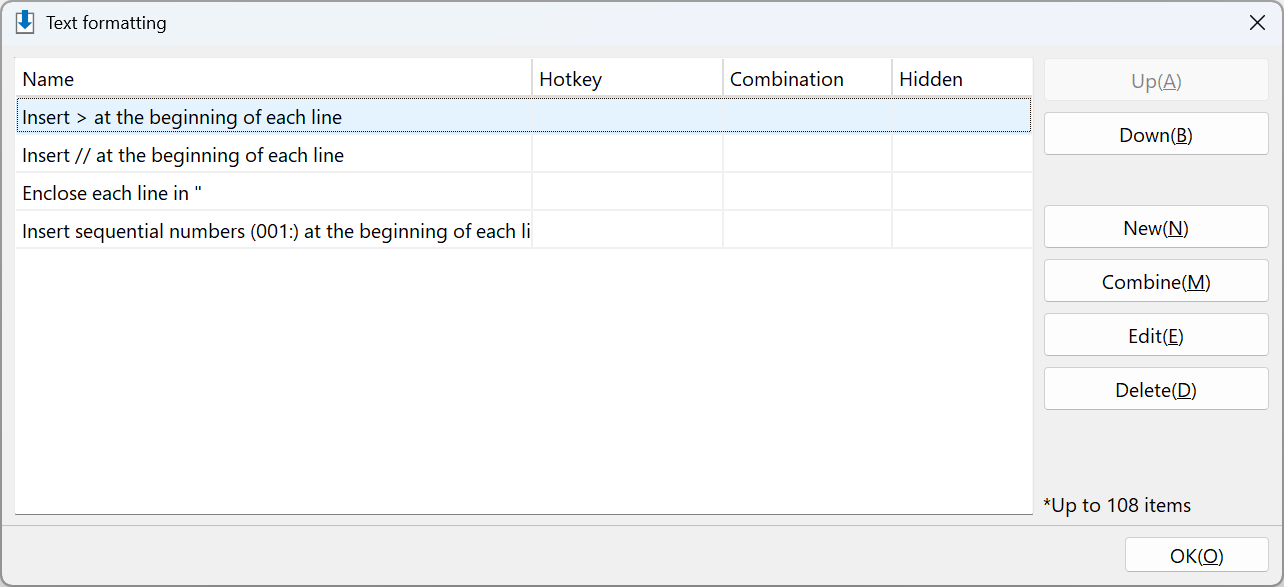
Click the "New" button and enter a name.
For example, you could create a formatting rule like this:
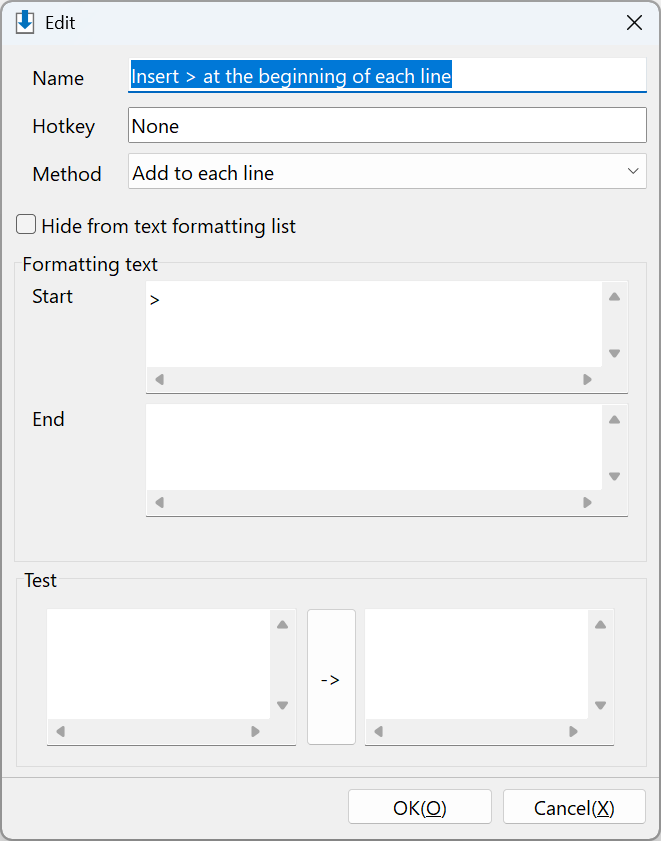
The following tags are available for use:
| <$CLB_LINE> %.3d<OFFSET>1</OFFSET> </CLB_LINE> | Prepends a line number to each line. Change %.3 to %.4 to use four-digit numbers (e.g., "0001"). The OFFSET value adds an offset to the line number. |
On this screen, you can also test the formatting to ensure it works as expected.
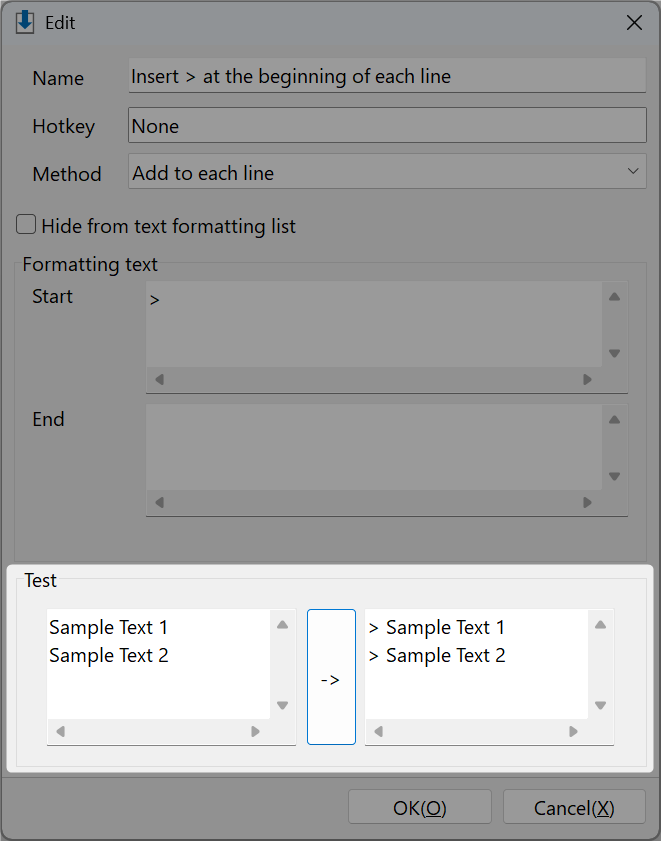
You can also perform replacements using regular expressions.
For details, see Regex Examples.

Template macros
You can insert date/time macros — including offsets like the day before or after today — into Templates.
From the Macro menu in the template editor, select the macro you want to insert.
You can also insert a FIFO macro.
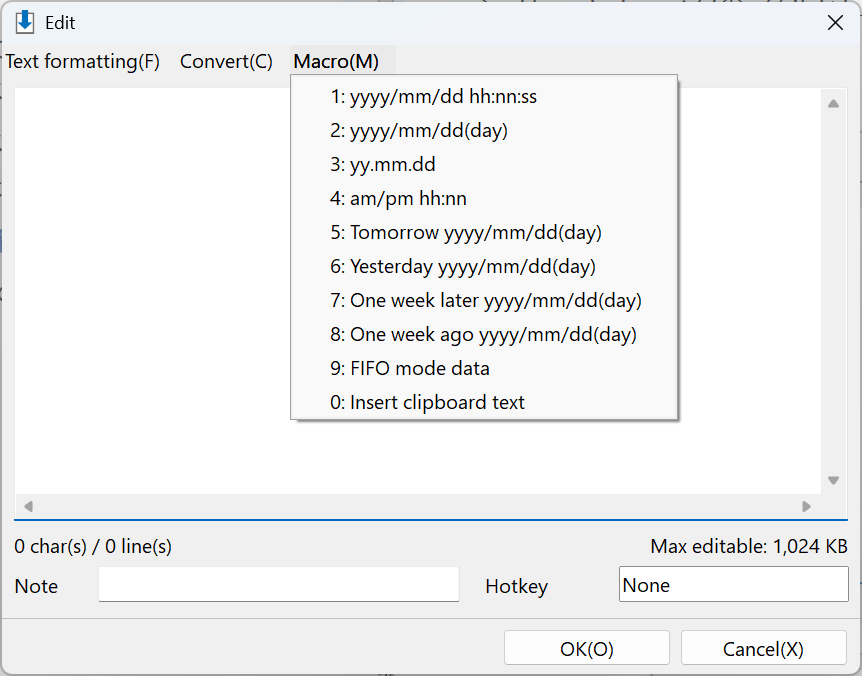
You can specify the date format freely.
For details on date formats, see the Q&A section.
| <$CLB_HDATE>yyyy/mm/dd hh:nn:ss</CLB_HDATE> | You can specify a date format, such as yyyy/mm/dd. (Refer to the Q&A for details on date formats.) |
| <$CLB_INCSEC>n</CLB_INCSEC> <$CLB_INCMIN>n</CLB_INCMIN> <$CLB_INCHOUR>n</CLB_INCHOUR> <$CLB_INCDAY>n</CLB_INCDAY> <$CLB_INCMON>n</CLB_INCMON> <$CLB_INCYEAR>n</CLB_INCYEAR> | These tags can be used within the <$CLB_HDATE> tag to specify offsets for seconds, minutes, hours, days, months, or years. Negative values can also be specified. For example, to display a date one day later, use the following: <$CLB_INCDAY>1</CLB_INCDAY> $CLB_INCSEC: seconds $CLB_INCMIN: minutes $CLB_INCHOUR: hours $CLB_INCDAY: days $CLB_INCMON: months $CLB_INCYEAR: years |
| <$CLB_TFIFO/> <$CLB_DT>AAA</CLB_DT> <$CLB_DT>BBB</CLB_DT> | Sets up FIFO mode data. Selecting this template switches to FIFO mode, so the specified items are pasted one after another. |
| <$CLB_CLIPBOARD/> | Replaced with the current text on the clipboard. |
Other
You can set Templates as the primary (left) tab on the main screen.
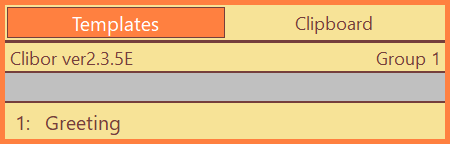
Preferences > Main screen > Tab > Open the Templates tab by default
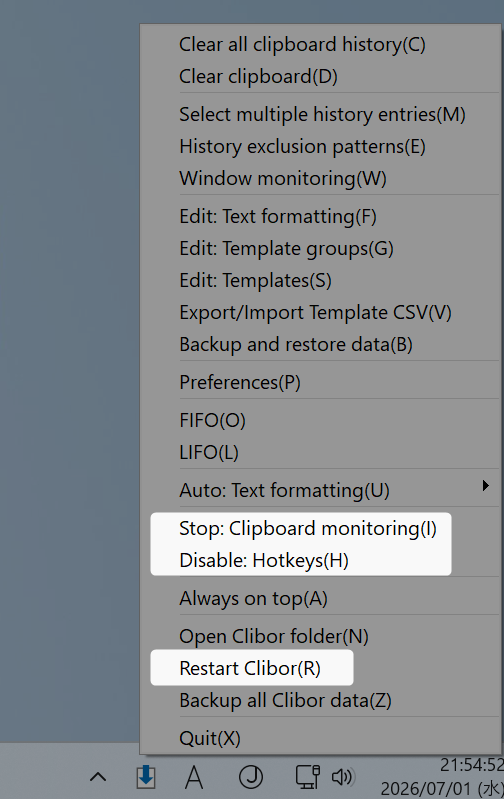
If Clibor is behaving unexpectedly, right-click the system tray icon and select Restart Clibor.
You can also choose Stop: Clipboard monitoring or Disable: Hotkeys from the tray menu if necessary.