

How to upgrade Clibor
Upgrading Clibor is simple. Follow the steps below:
Microsoft Store version
The Store version updates automatically. You don't need to do anything.
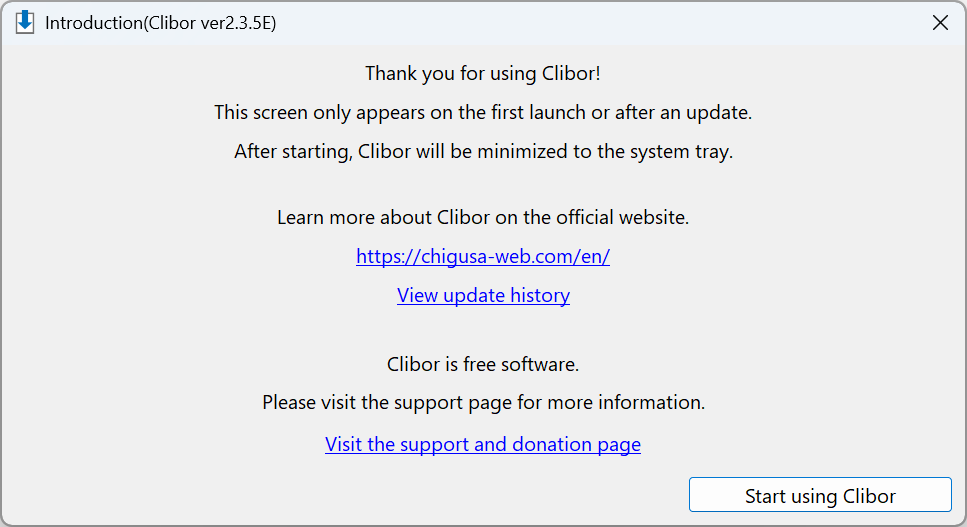
The update itself is automatic, but the following screen appears once after an upgrade.
Portable version
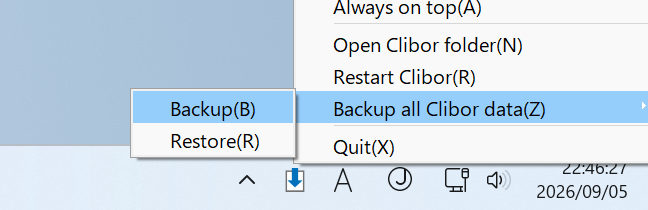
First, create a backup.
Right-click the Clibor icon in the system tray and select "Backup all Clibor data" → "Backup".
Choose a destination folder, and a ZIP file containing the backup will be created.
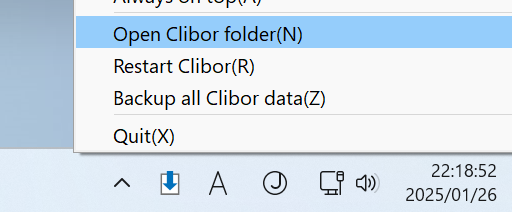
Open your Clibor folder.
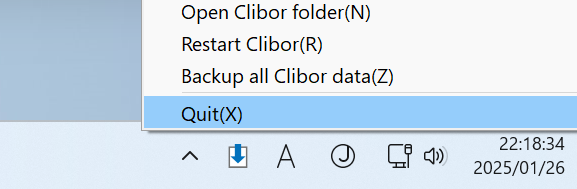
Then, exit Clibor.
Download the latest version of Clibor from the page below.

Unzip the downloaded cliborXXXE.zip file.
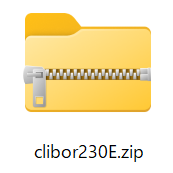
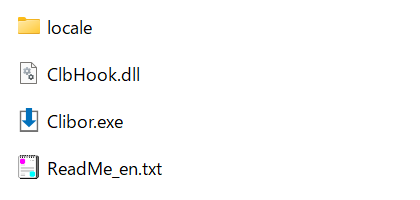
Copy all files from the extracted folder into your Clibor folder, replacing the existing files when prompted.
When you launch Clibor.exe, the following screen appears during the upgrade.
This completes the upgrade process.